

LeafTrove
Don’t leave your highlights behind on your Kobo.
Plug in a cable and your Kobo highlights and notes come to iPhone and iPad. Reread one on your Home Screen every day, and when a line comes to mind, search finds it.
Try the sample without signing in. Importing your own highlights by cable is free too. Your own notes need a compatible physical Kobo eReader and a USB data cable.
If you read on a Kobo, these may sound familiar
| On the eReader alone | With LeafTrove |
|---|---|
| I know I highlighted it, but which book was it? | Type a few words you remember: titles, authors, highlights and your own thoughts are all searchable.See search |
| I highlighted so much, and never looked back. | Today’s pick brings you one line a day, also on your Home Screen and Lock Screen.See widgets |
| Writing a longer thought on the eReader is hard. | Write your thoughts on your phone, next to the line, so you see both when you reread.See a note |
| To send a line to a friend, I take a photo of the screen. | Turn it into a share card, or send it as text with the title and author.See share cards |
| I can’t really say what I read this month. | Monthly recap puts the month’s books, reading days and best lines on one page (subscription).See Monthly recap |
From a highlight on your Kobo to a passage you reread
The library and widget screenshots show LeafTrove 1.2 in the Traditional Chinese interface, with books and notes that a reader imported; the note screenshot shows LeafTrove 1.4 with its built-in sample. The app does not come with these books. The images are cropped; select one to see the full screenshot.
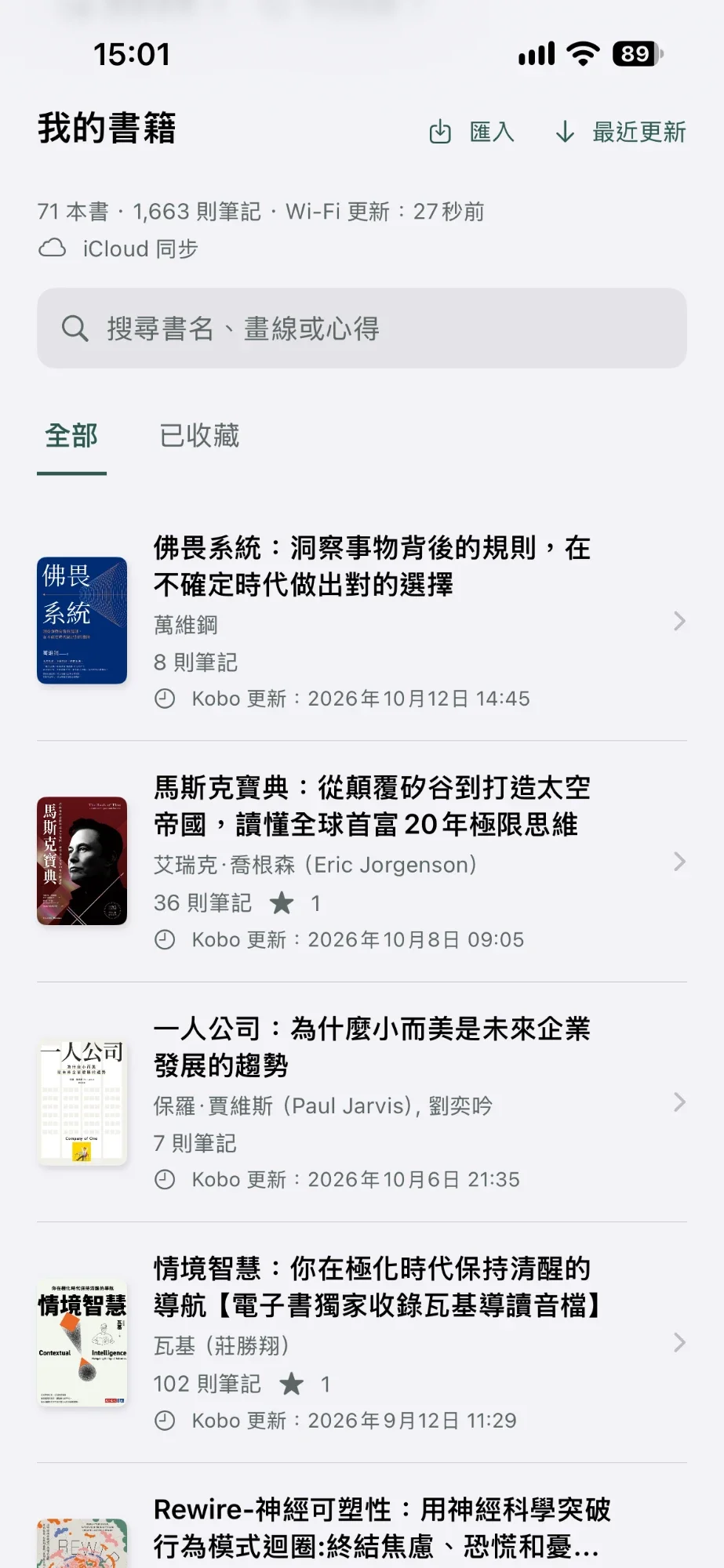
- Free
Find the line you are looking for
Search by title, highlight or note. Covers, authors and note counts are shown together, so a book you have read is easy to spot. Keep favorites, and group books or tags into “My collections” to come back to the same set of notes.
Plans and details
Notes and available covers are stored on the device and can be read offline. A book without a cover still shows its notes.
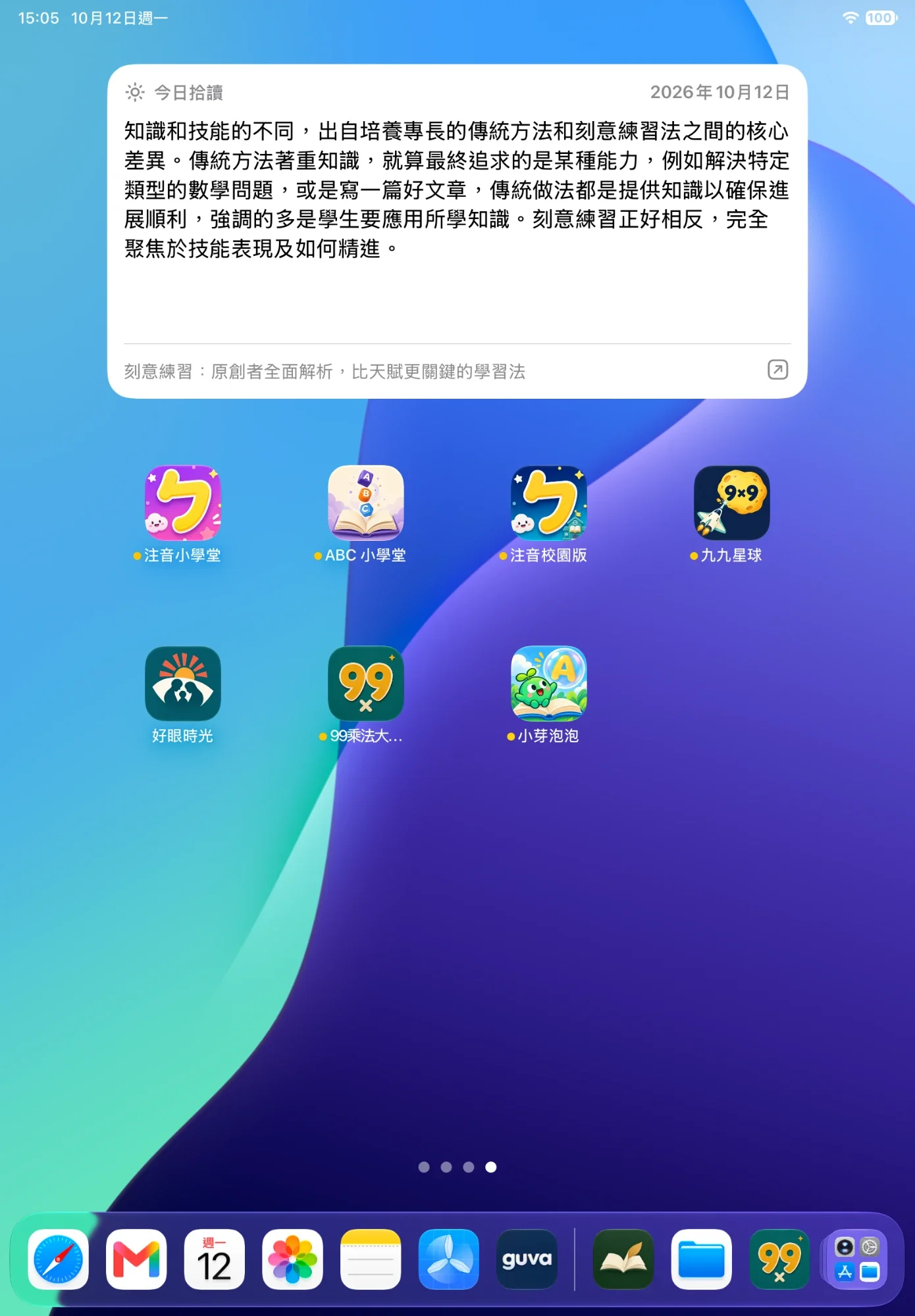
- Free
- Subscription
A passage on your Home Screen, without opening the app
The Home Screen widget shows today’s passage and its book title; the extra large iPad widget provides more reading space. Lock Screen widgets are available too.
Plans and details
The small widget is free; medium and larger Home Screen widgets and Lock Screen widgets need a subscription. iOS decides when widgets refresh.
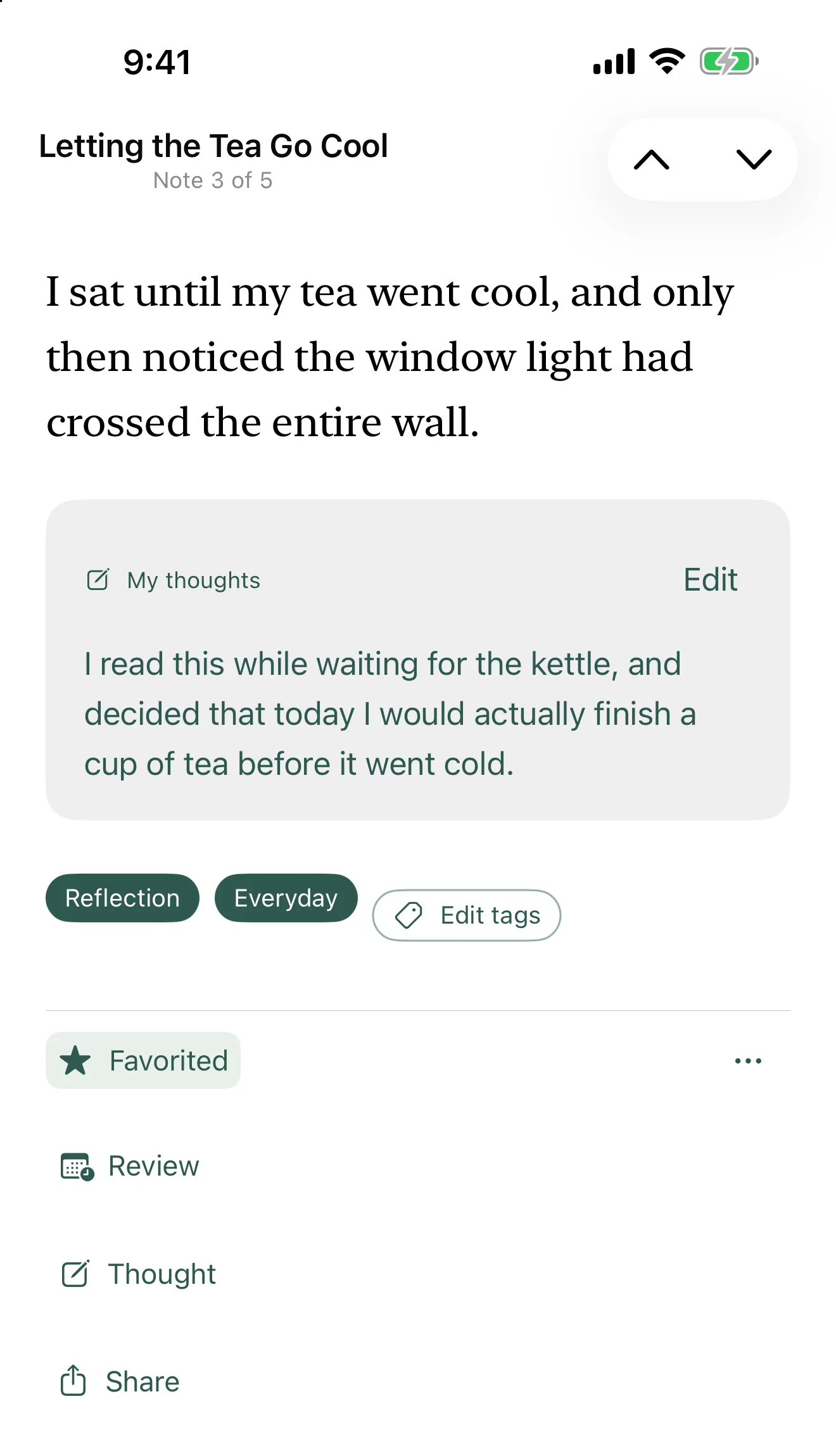
- Free
- Subscription
Write your own thoughts next to the line
Add “My thoughts” to any highlight and reread them together. Sort books into your own collections; with a subscription, tag notes and filter or search by tag.
Plans and details
The free plan includes 20 thoughts, and the thoughts you have written can always be read, searched, edited, deleted and exported; a subscription makes them unlimited. Collections are free; tags need a subscription, and the note page offers suggested tags you can tap. With a subscription, they sync between iPhone and iPad through your own iCloud.
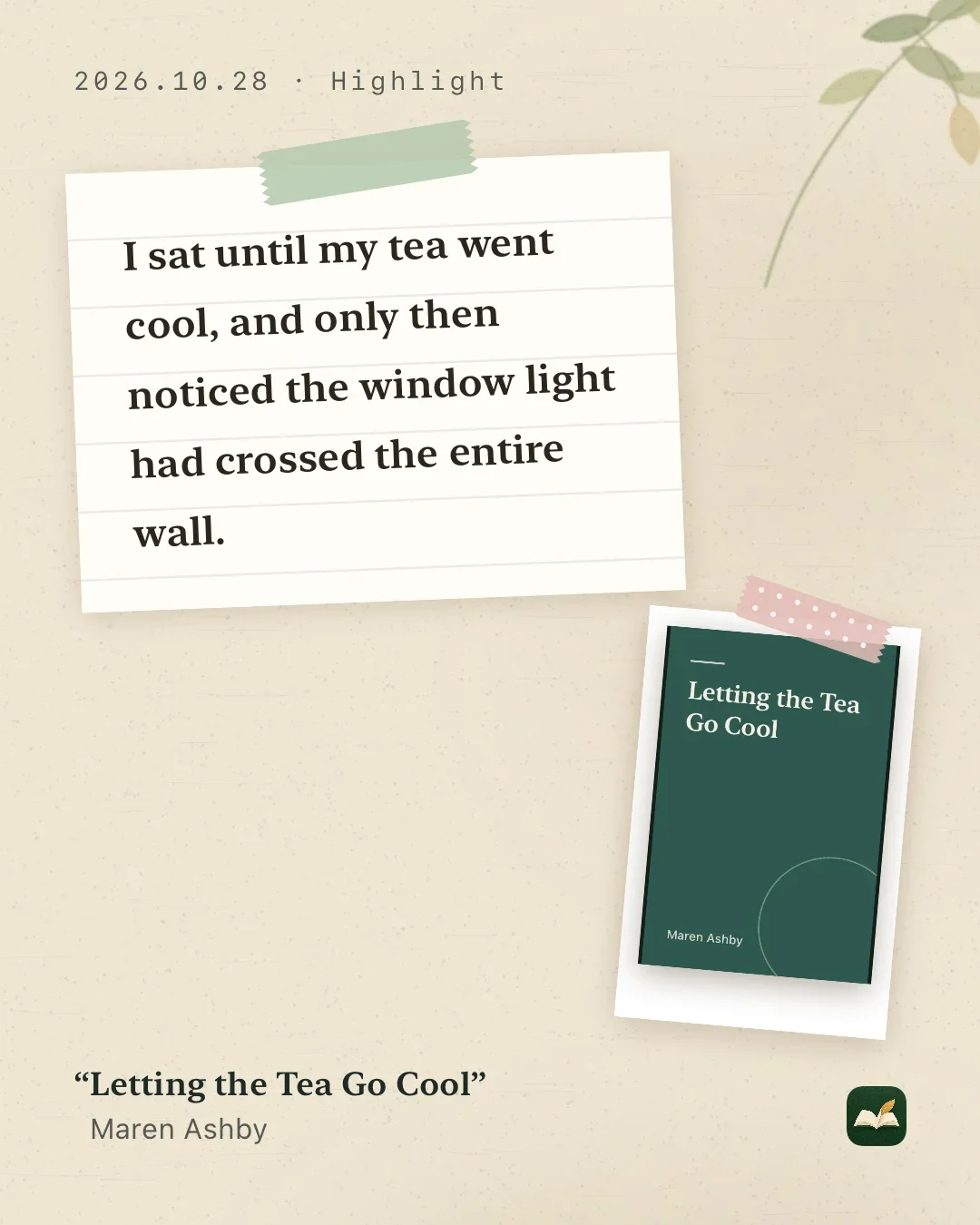
- Free
- Subscription
Turn a line you love into a card
Turn a highlight into a card for social posts or friends, or share it as text. The minimal style is free; a subscription adds 8 more styles (bookmark, poster, cover, poem, journal, botanical, index card, and vertical for Chinese and Japanese text), background colors, four sizes including wide 16:9, three text sizes, the cover and tags, editable text and no signature. The picture is made on the device; nothing is uploaded. Since 1.5, cards carry a small LeafTrove signature and show the book’s main title; subscribers can hide the signature or show the full title.
Plans and details
A version 1.4.1 card in the Journal style, made from LeafTrove’s built-in sample. The minimal style is free; Journal and the 7 other styles need a subscription.
- Subscription
Look back at each month’s reading
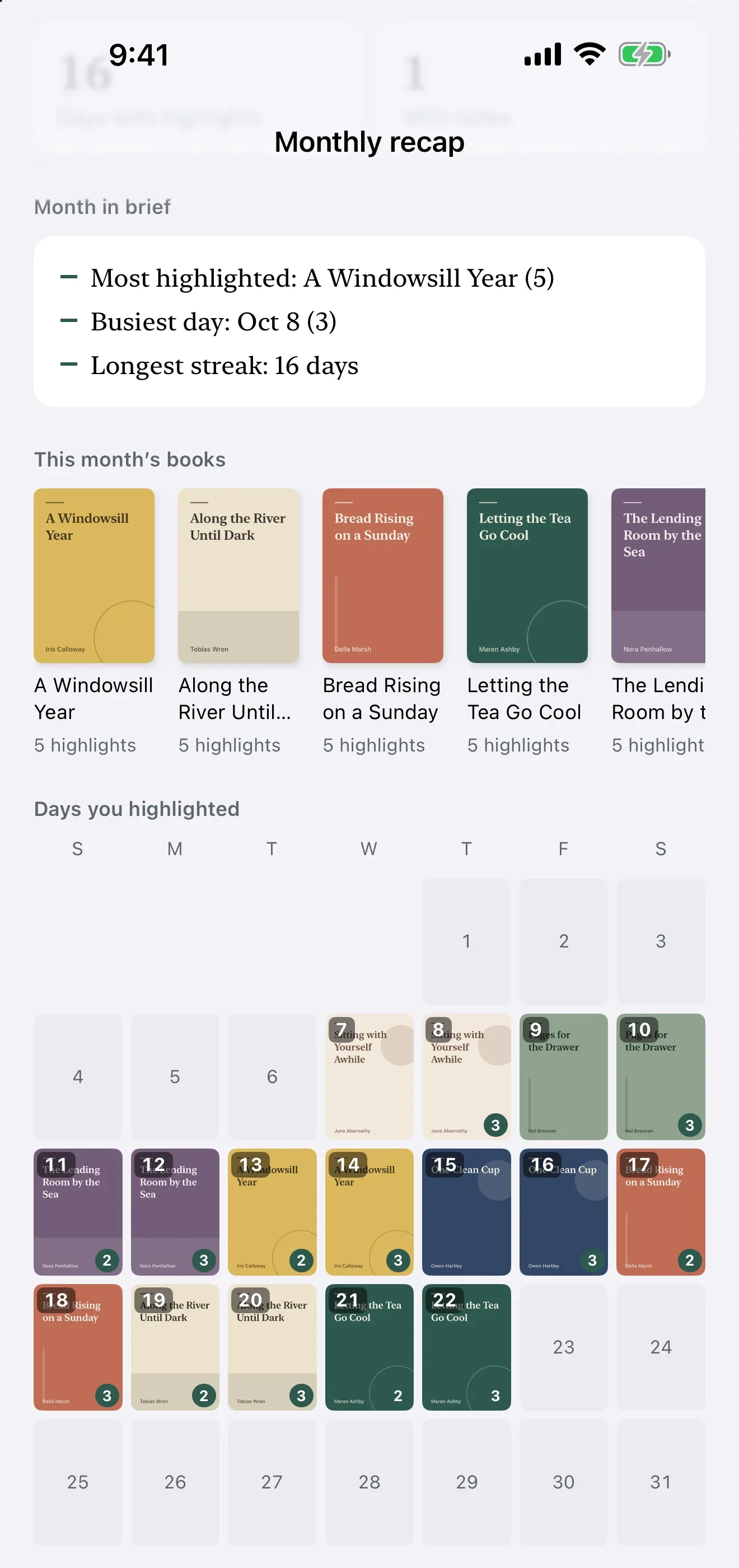
Monthly recap puts the month on one page: the books you read, the days you highlighted, the month in brief and the lines worth another look. The calendar shows each day’s book cover, and every past month is there too. Tap “Share this month” to make a card in five layouts: Overview, Collage, Cover calendar, Spines and One line.
Plans and details
Monthly recap and its cards need a subscription. Highlights count by their date on your eReader; new ones count once you import or update. The screenshot shows LeafTrove 1.5 with its built-in sample.
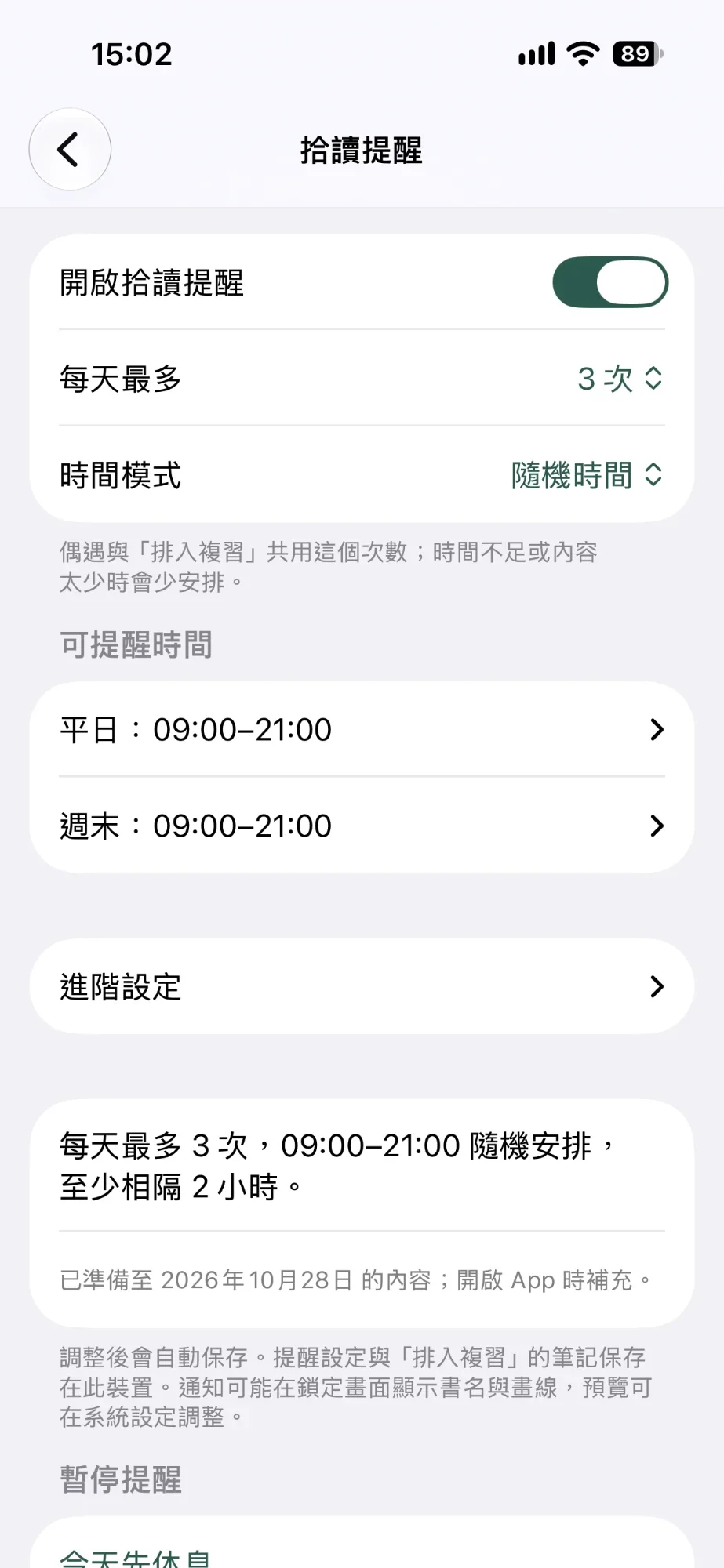
Set reminders at your own pace: see the app screen
Reminders at your own pace
The free version sends one reminder a day at a fixed time. With a subscription you can have up to 5 a day, with random time windows, separate hours for weekdays and weekends, and quiet hours. On a busy day, choose “Take today off”.
Changes are saved automatically. The number is a daily maximum; fewer are scheduled when there is not enough content or time.
Also in LeafTrove
- My thoughts
- Write your own thoughts on any highlight: 20 on the free plan, unlimited with a subscription. They are stored encrypted on the device, can be searched and exported, and have their own backup.
- Today’s pick
- Each day LeafTrove picks a highlight or note worth rereading from the source you choose: all notes, favorites only or specific books. Use the arrows on the card to look back at earlier picks or move on to another passage, or exclude a note you would rather not see again.
- Notifications that are the passage itself
- A reminder shows the note excerpt and its book title. Tap it to open the same note.
- Take your notes with you
- Export books and notes as Markdown or JSON. Every note keeps its book title.
- Schedule for review (subscription)
- Add a note to your review list. With reminders on, it comes back in your reminders from time to time; you can pause it or remove it from the list.
- Note tags (subscription)
- Add your own topic tags to notes, then filter and search by tag, or build a collection from tags.
- Archive (free)
- Hide highlights or whole books you no longer want to see: choose “Archive this highlight” or “Archive this book” in the “⋯” menu. They leave your bookshelf, review, widgets, search and Monthly recap; nothing is deleted, and you can unarchive them anytime in Settings → Archived.
Bring in your highlights, one step at a time.
Choose your iPhone or iPad. Follow the actual LeafTrove controls, with help whenever you get stuck. Free import needs no sign-in or subscription.
-
USB-C iPhone (iPhone 15 or later)
Including iPhone Air. Connect the cable and LeafTrove reads the eReader directly; check the preview, then import. No computer needed.
See the cable steps (USB-C iPhone) -
iPad with USB-C
iPad 10th generation or later, iPad Air 4th generation or later, iPad mini 6th generation or later, and USB-C iPad Pro models can read directly by cable too.
See the cable steps (USB-C iPad) -
Lightning iPhone or iPad
For example iPhone 11 to 14, iPhone SE (2nd or 3rd generation), or iPad 6th to 9th generation. Export on a computer in Chrome or Edge, then send the file to the device and import it. Nothing to install on the computer.
See the web export steps (Lightning iPhone or iPad)
Not sure which model you have? Open Settings → General → About on the device and check “Model Name”. LeafTrove needs iOS or iPadOS 17 or later.
You need a compatible physical Kobo and a USB data cable. Learn about optional Wi-Fi and subscriptions after importing.
Start free; subscribe only if you need more
Once your own notes are imported, you can search them, keep favorites, read offline, write up to 20 thoughts of your own, and use the small widget and one reminder a day. Subscribe if you want unlimited thoughts, to share the library across devices, schedule reviews, tag notes, or have more reminders and widgets.
Free to use
- Import by cable or web export, no sign-in
- Search, favorites, archive and offline reading
- Up to 20 thoughts of your own, and collections
- Share cards in the minimal style
- The small widget and one reminder a day
- Export to Markdown or JSON
The subscription adds
- Monthly recap and five monthly share cards
- Unlimited thoughts and note tags
- 8 more card styles and four sizes
- iCloud sync between iPhone and iPad
- Up to 5 reminders a day, and a review list
- Medium, larger and Lock Screen widgets
Monthly or yearly subscriptionMonthly and yearly plans have the same features. A one-month free trial is available if Apple confirms your eligibility. The current price, currency and trial terms are shown on Apple’s purchase screen. Buying and restoring do not need a LeafTrove account. Subscriptions renew automatically until cancelled in Apple Settings → your name → Subscriptions.
See the full comparison
| Feature | Free | Subscription |
|---|---|---|
| Import, read and organize | Import by cable or web export, with no sign-in. One library with search, favorites and “My collections”. Share notes and export to Markdown or JSON. | Everything in the free version. On compatible models, Wi-Fi wireless updates as well. |
| My thoughts | Up to 20 of your own thoughts on highlights: stored encrypted on the device, searchable, exportable, with backup. Thoughts you have written always stay readable, editable and exportable. | Unlimited thoughts, and finished thoughts sync through iCloud. |
| Note tags | Not included. Collections can still be built from books. | Tag notes, filter and search by tag, and build collections from tags. |
| Monthly recap | Not included (the home screen shows a locked entry and this month’s preview). | One page per month: the month in brief, this month’s books, a cover calendar, picks and all highlights, for every past month too; plus five monthly share cards. |
| Share cards | The minimal style at 4:5, shared as a picture or text. A small LeafTrove signature is always shown. | 8 more styles and background colors, four sizes (4:5, 9:16, 1:1 and wide 16:9) and three text sizes, the cover and tags on the card, editable text, no signature, full title. |
| Archive | Hide highlights or whole books you no longer want to see; nothing is deleted, and you can unarchive them anytime. | Same as free. |
| Library across devices | Stored on this device. | iCloud sync between iPhone and iPad: library, favorites, covers, thoughts, tags and collections. |
| LeafTrove reminders | One a day, at a fixed time. | Up to 5 a day, with random time windows and quiet hours. |
| Widgets | The small Home Screen widget. | Medium and larger Home Screen widgets, and Lock Screen widgets. |
| Rereading | Today’s pick, and favorites for notes you want to find again. | Schedule for review: a review list that comes back in your reminders. |
To see current prices in the app, open “Settings” → “LeafTrove subscription and restore purchases” (in the “Account and plan” group). Viewing the plans does not start a subscription; Apple asks you to confirm a purchase.
After you cancel, your notes are still yours. When a subscription ends, the notes you imported can still be read, searched and exported. The price, currency and trial eligibility are the ones shown on Apple’s purchase screen. The subscription renews automatically each month or each year, depending on the plan, and can be cancelled in Settings → your name → Subscriptions.
A favorite keeps a note; a review brings it back
- Pick a note. Open it from Today’s pick or from your library.
- Tap “Schedule for review” on Today’s pick, or “Review” in the actions row of a note, to add it to your review list.
- Manage it in “Review list”. You can pause a note or remove it. With LeafTrove reminders on, it comes back in your reminders from time to time.
The review list and reminder settings are kept separately on each device and are not synced through iCloud.
If you installed LeafTrove before version 1.2
Schedule for review, multiple reminders and every widget size stay free for you. Note tags, more than 20 thoughts, iCloud sync and Wi-Fi wireless updates need a subscription. The app shows what your installation includes.
Will it work with my Kobo?
What works with a Kobo depends on the eReader’s model, its firmware and the results of the checks. Go through the points below before you choose how to import.
- Free import
- USB-C iPhones and iPads can read the eReader directly by cable; for Lightning iPhones and iPads, export on a computer. Check your iPhone or iPad first. Both ways read the text highlights and notes on the Kobo and never change the eReader. If something goes wrong, tell us the model, firmware and error message.
- Wi-Fi wireless updates (comes with the subscription)
- Available on compatible models only. On a USB-C iPhone or iPad, LeafTrove sets them up with one cable connection, with no computer and no pairing code; Lightning iPhones and iPads use the Mac or Windows assistant. Both check the model, hardware revision and firmware, and each device still has to pass a backup and staged checks. Check the model and firmware conditions before you start a trial or subscribe.
Text highlights and notes from EPUB/KEPUB books are supported. PDF, handwritten notes and book text are not.
What to prepare: phone, computer and cable
- iPhone or iPad: iOS or iPadOS 17 or later.
- Web export: Chrome or Edge on a Mac or Windows computer. The computer assistant, which is needed only for Wi-Fi setup from a Lightning iPhone or iPad or if you choose to export with it, requires an Apple silicon Mac with macOS 14 or later, or Windows 10/11 x64.
- A USB cable that supports data transfer. USB-C iPhones and iPads need no computer, neither for importing nor for the first setup of Wi-Fi wireless updates. Lightning devices export on a computer, and the first setup of Wi-Fi wireless updates needs the computer assistant.
- Kobo model and firmware: on the eReader, see Settings → Device information.
Whatever Kobo you use, you can contact us for help; no subscription or trial is needed first. You can also send feedback from “Report your model and experience” under Help & About in the app’s Settings.
LeafTrove is an independent third-party app by HoMade Works. It is not affiliated with, sponsored by or endorsed by Rakuten Kobo Inc.; the Kobo name is used only to describe compatibility.
Before you download
Can I use LeafTrove with my Kobo and my iPhone or iPad?
LeafTrove runs on iPhone and iPad with iOS or iPadOS 17 or later. USB-C models (iPhone 15 or later; iPad 10th generation or later, iPad Air 4th generation or later, iPad mini 6th generation or later, and USB-C iPad Pro models) can read the eReader directly with a USB cable that supports data transfer. For Lightning iPhones and iPads, export on a computer with Chrome or Edge. The first setup of Wi-Fi wireless updates is done by cable in LeafTrove on a USB-C iPhone or iPad; Lightning iPhones and iPads need the assistant on an Apple silicon Mac (macOS 14 or later) or a Windows 10/11 x64 computer. Help and troubleshooting are available for every Kobo model; which features work depends on the model, the firmware and the results of the checks. If you run into a problem, tell us the model, firmware version and error message. No subscription or trial is needed for that.
Which notes can be imported? Are PDF or handwriting supported?
Only text highlights and notes from EPUB/KEPUB books on a Kobo. PDF, handwriting and whole-book transfer are not supported. Notes you make after importing by cable or web export need another read or export; with Wi-Fi wireless updates, you tap sync on the Kobo and then open the app to update.
Is a Kobo account or a phone reading app enough?
No. Importing your own notes needs a compatible physical Kobo eReader and a USB cable that supports data transfer. Without an eReader you can still download LeafTrove for free and look at the sample library, then import your own highlights once you have the eReader ready.
Can I try LeafTrove without a Kobo eReader?
Yes. After the free download, choose “See the sample library first” on the last page of the introduction. Without signing in you can read the sample content and try search, favorites and export; no computer or Kobo is needed. Changes you make in the sample are not kept after you leave it, and the sample does not connect to an eReader or turn on notifications or widgets.
Do new notes reach my phone by themselves?
No, you start each update yourself. With the free ways, read by cable again or export again on a computer. With Wi-Fi wireless updates, tap “拾讀 同步筆記” (LeafTrove: Sync notes) on the Kobo, check the result there, then open LeafTrove to update. iCloud syncs your library between iPhone and iPad; it does not import new notes from the eReader.
If I cancel the subscription, can I still read the notes I imported?
Yes. After the subscription ends, imported notes can still be read, searched and exported, and importing by cable or web export stays free; share cards keep the minimal style. The thoughts you have written can still be read, searched, edited, deleted and exported; beyond the free plan’s 20, adding new ones needs a subscription again. Other features follow the free version, or the early-user benefits the app shows. To cancel, open Settings → your name → Subscriptions on the iPhone or iPad; deleting your account or the app does not cancel the subscription.
More on thoughts, sync and managing data
How many thoughts can I write for free?
The free plan includes 20 of your own thoughts; a subscription makes them unlimited. Highlights and notes imported from the eReader do not count. Once you reach 20, the thoughts you have written can still be read, searched, edited, deleted and exported; you just cannot add new ones. The limit also applies to early users who installed before 1.2. Note tags need a subscription; book collections are free.
What does iCloud sync cover?
With a subscription, your library, favorites, covers, thoughts, tags and collections sync between your iPhone and iPad through your own iCloud. Drafts of thoughts, the review list and reminder settings are kept separately on each device. Each device has to be signed in to the same Apple account with iCloud turned on; when a sync happens is decided by the system and the network.
Can I look back at my favorites only?
Yes. Under “Review source” in Settings, choose all notes, favorites only or specific books. Today’s pick is chosen again from the new source right away.
Does LeafTrove get my Kobo password?
No. LeafTrove does not ask you for your Kobo account password. Linking uses LeafTrove’s own authorization: a single-use grant written by cable from a USB-C iPhone or iPad, or a pairing code in the computer assistant flow.
Does deleting my LeafTrove account delete the books on my Kobo?
No. Deleting the cloud account removes that account’s cloud content and authorizations. It does not remotely delete the original e-books, highlights and notes on your Kobo, it does not delete “My Library” on this device or files you exported, and it does not cancel an Apple subscription. Before removing the app or clearing device data, read the Account and local data page.
Is LeafTrove made by Kobo?
No. LeafTrove is an independent third-party app by HoMade Works. It is not affiliated with, sponsored by or endorsed by Rakuten Kobo Inc.; the Kobo name is used only to describe compatibility.
Which languages is the app available in?
The app follows your device language: English, Japanese, French, German, Dutch, Italian, Spanish or Traditional Chinese. The computer assistant and the LeafTrove menu on the eReader are in Traditional Chinese for now.
Can LeafTrove import notes from books I added myself?
Yes, readable EPUB/KEPUB text highlights and notes can be imported, including books added yourself. PDF, handwriting and full books are excluded. If notes are missing on the reader, keep the data and check the support steps; recovery on Kobo cannot be guaranteed.
Your notes can be exported as Markdown or JSON, and every note keeps its book title. See exporting and removing data.
Find that highlight. Read it again tomorrow.
Try the sample without signing in. Importing your own highlights by cable is free too. Your own notes need a compatible physical Kobo eReader and a USB data cable.

Reading by cable and web export are free and need no subscription. Schedule for review, note tags, iCloud sync, more reminders and larger widgets need an active trial or subscription. Check the eReader requirements before you import.